
Visit Main Site
Join Partner Program
Login
     
Getting Started with Template
Building a Website
Starting Template Creation
Layout
Creating Your Layout
Editing The Content Section
Creating & Editing Docker
Positioning
Pages
Create a Page
Page Content Editor
More Features
Widgets
Files & Assets
Designing With Custom CSS
Development With Custom JS
How to Add Fonts
How to Add Images
Navigation
How to Create?
How to Modify Existing Navigation?
How to Set a Navigation?
Snippet
Adding Snippet Template
Add Code to Snippet Template
Data Attribute
Skip-control
Create Snippet
Using Snippets on Page
Responsive Design
Crafting Responsive Content
Crafting a Responsive Header
Hide Grid for Specific Resolutions
Import & Export Guide
Marketplace Template Management
Demo Template
Logo & Favicon
» Import & Export Guide

Import & Export Guide

Once you have completed the template design, follow the steps outlined below to upload the template to the Partner Program:

Export

Navigate to the “Web Design Tools” section.
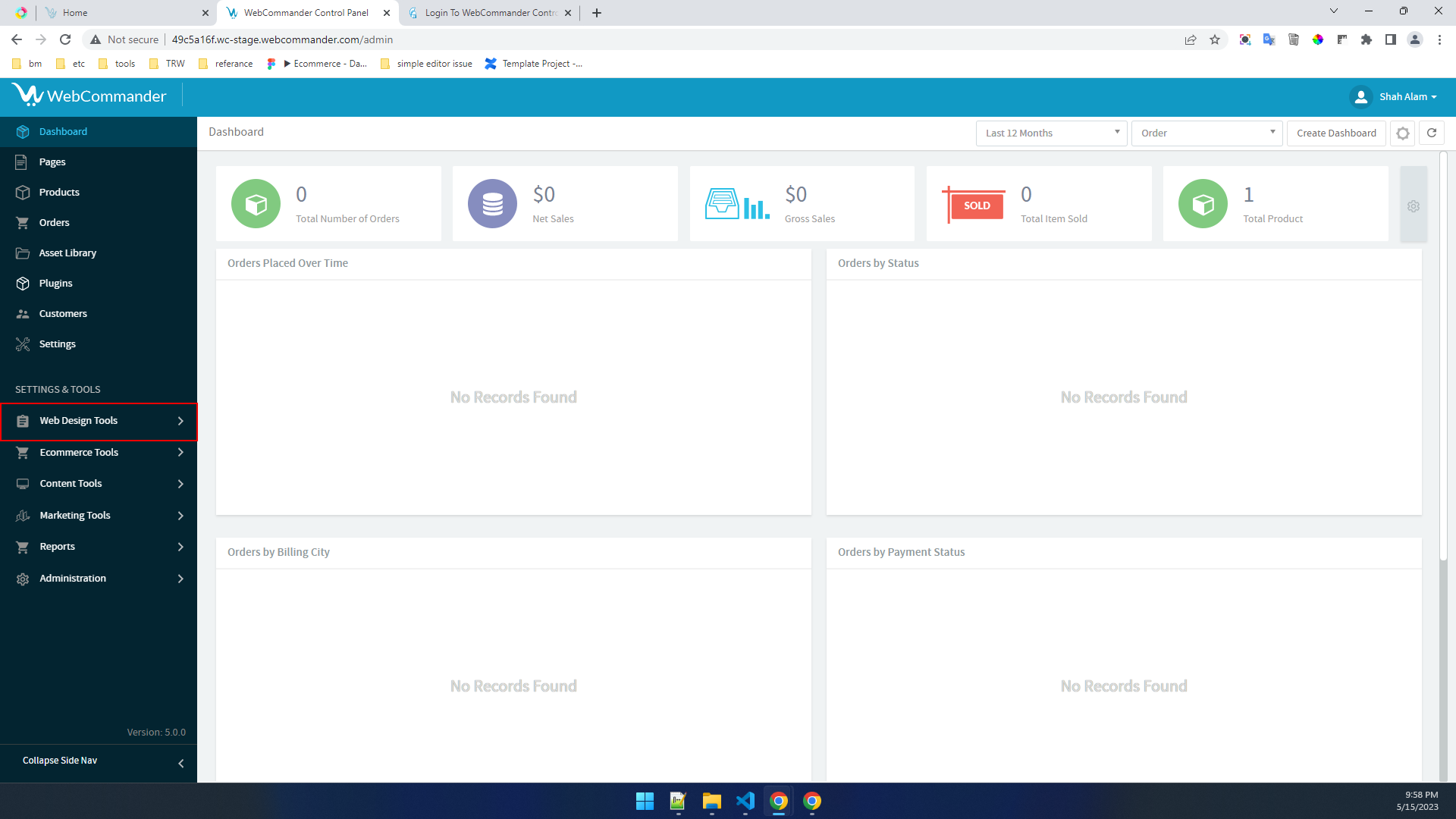
Click on the “Template” option.
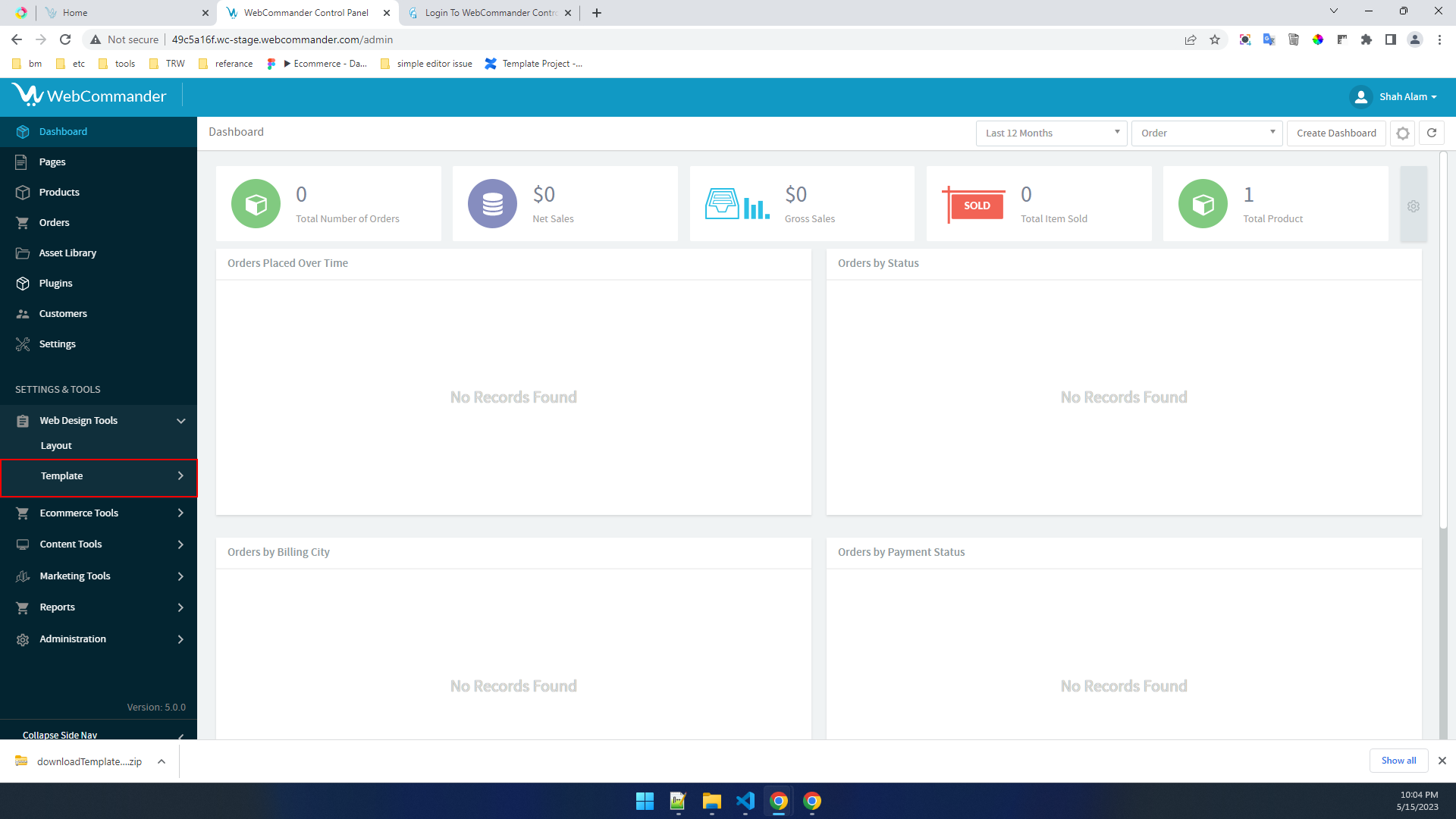
Click on the “Download Site Template Resources” button. This action will initiate the download of a zip file containing the necessary resources for the site template.
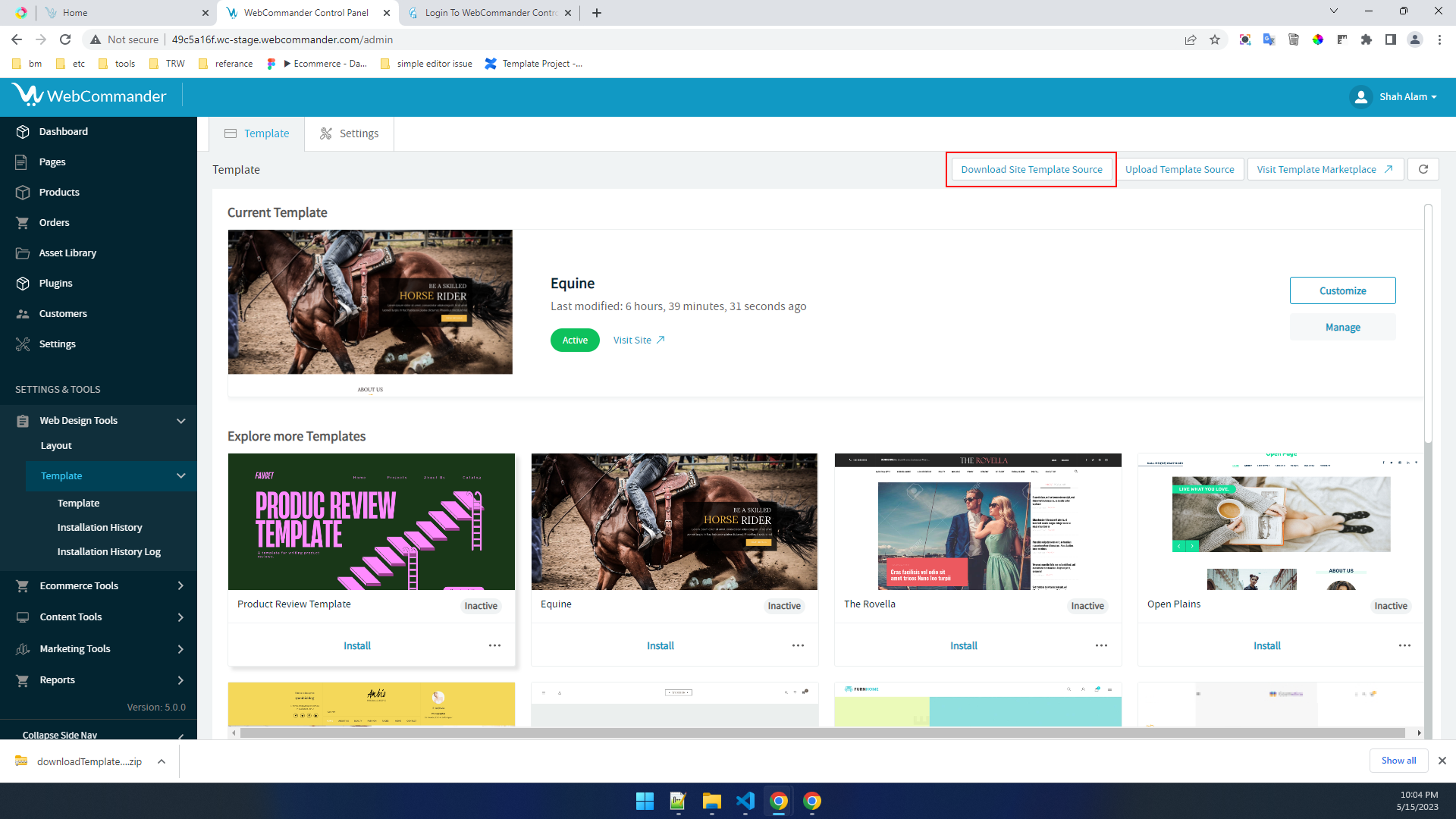
If you the user wants to see what resource will be downloaded from the instance, he must click on the “Visit Site” menu from the profile drop-down menu. This will show him the current version of the template & system will download resources related to this template.

Import

If a user wishes to upload an existing template zip file to the system, they should follow the steps outlined below:

Navigate to the “Web Design Tools” section.
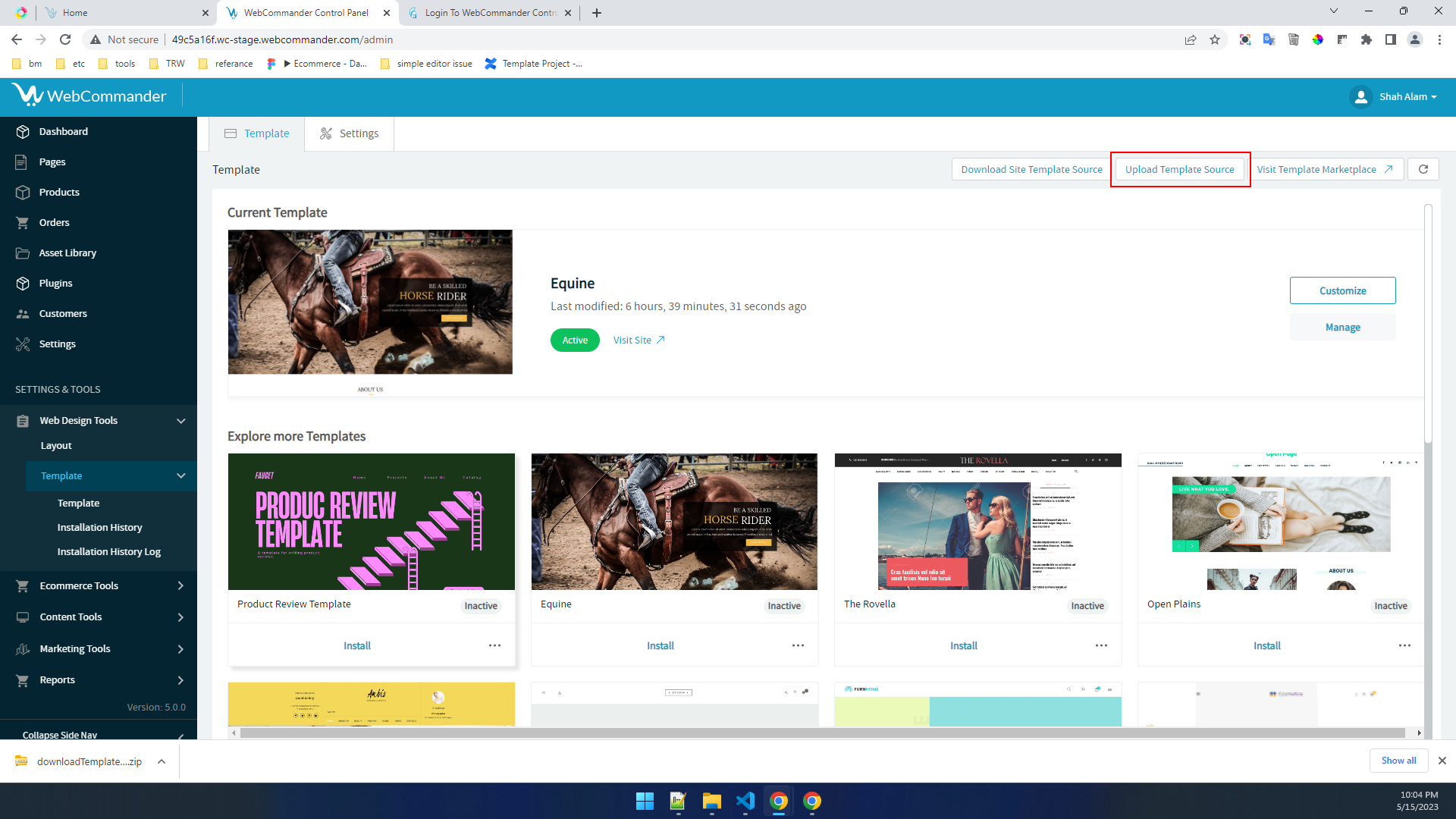
Click on the “Template” option.
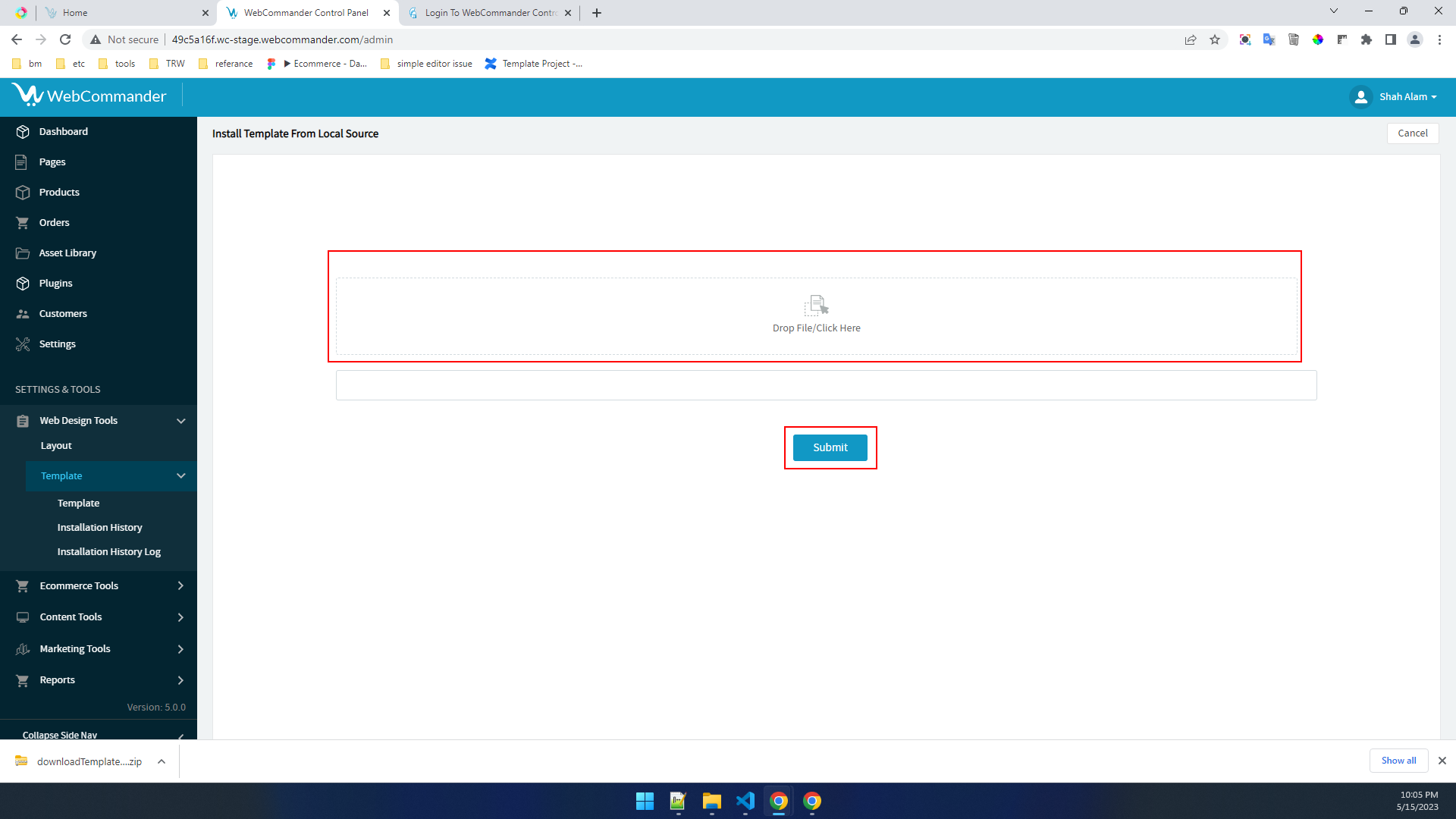
Click on the “Upload Template Resources” button.

Drag and drop the downloaded zip file into the designated area, or click to browse and select the file from your device. Afterwards, click on the “Submit” button to proceed with the upload process.

After Completing the export procedure, the user must upload the zip file with all necessary details in the Partner Program. Follow the steps mentioned on this page Marketplace Template Management for completing the template upload procedure to the partner Program. After that, a reviewer will review the template & approve it for the marketplace.

Terms and Conditions
Privacy Policy

© 2024 WebCommander | All Rights Reserved

contact@webcommander.com
1300 797 571

WebCommander
About Us
Features
Pricing
Compare
Partners
Contact Us
Resource
Find a Partner
Help Centre
Community
Blog
Solutions
Inventory Management
Omnichannel Sales
Ecommerce Automation
B2B Ecommerce
Headless Commerce
Website Design and Performance